Features
What each control is for — not a feature parade.
These notes follow publicly documented behavior. If a control is not on this page, we could not verify it from official material and we will not invent it.
What you can capture
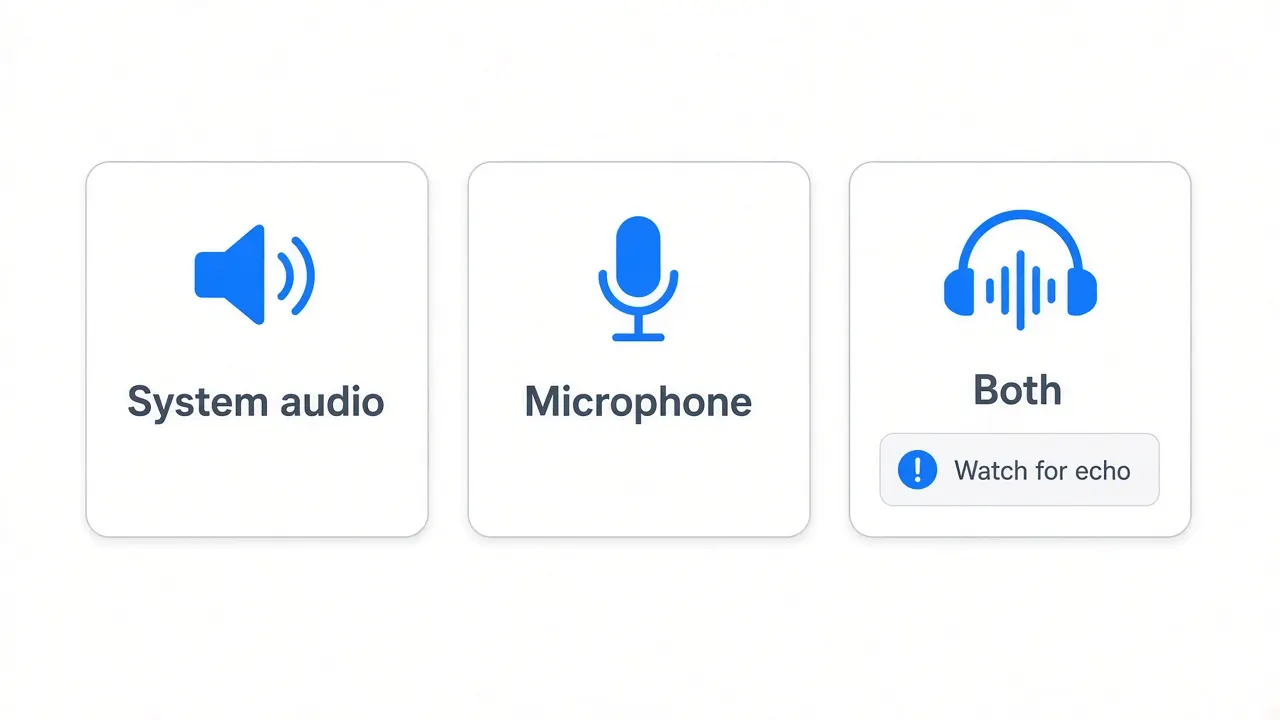
Official product pages describe three picture sources: the whole display, one window, or a selected area. Alongside the picture you can record a webcam, a microphone, and system audio. System audio can include every app or only the apps you select. The recorder is built on ScreenCaptureKit, which is Apple’s current capture path and does not require a third-party audio driver.
Two practical notes from the same materials: you can resize the window you are about to record to an exact size, which keeps a series of lessons consistent; and during a recording the take is written to disk every two seconds, so a power loss is less likely to erase the entire session.
Zooms and framing
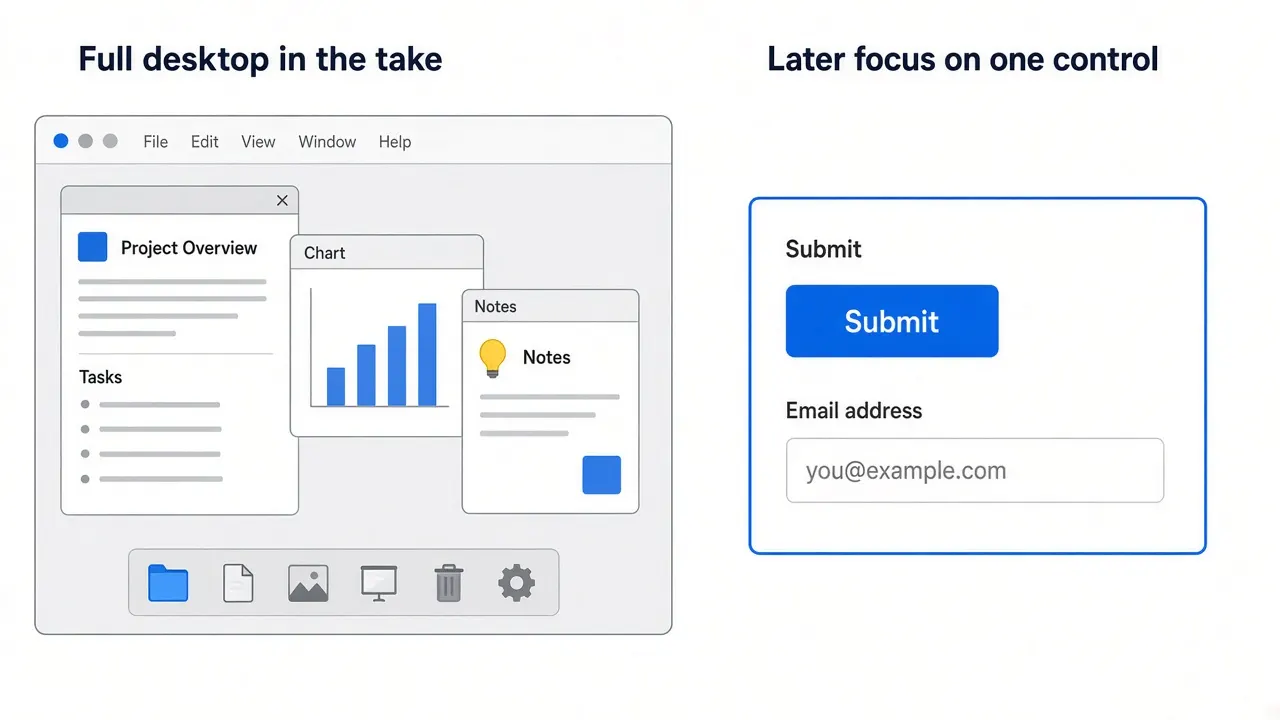
The developer describes two ways to get closer to a control. Automatic zoom looks at what you did — including where you clicked — and moves in on those moments. Manual zoom is something you add later: place it on the timeline and point it at a region. In both cases the motion is animated for you. Vertical exports adjust those zooms so the same project can ship as a tall video.
Use automatic zoom when the story is a sequence of clicks. Use a manual zoom when the important thing is a static panel the cursor never visits. Do not stack zooms on every movement; viewers lose the map of the desktop.
Background, outer spacing, shadow, and inset are documented as layout controls around the recorded picture. They change how the video sits on a colored field. They do not replace a clean desktop. Prepare the Mac first withthe macOS guide.
Cursor
- Motion can be smoothed so a shaky hand becomes a steadier path.
- Size can be changed after recording, which is useful when you notice the pointer is invisible on a 1080p export.
- A static cursor can be hidden with an animation, so a parked pointer does not sit on the UI.
- Official notes also mention looping the cursor near the end for a clip that should repeat, and replacing known cursors with high-quality system cursors when you enlarge them.
Enlarge the pointer for phone-sized playback. Keep a normal size for a desktop audience that already knows the interface.
Camera layouts
One recording can hold more than one camera layout. Official names include Fullscreen camera, Split screen, Camera overlay, Screen only, and Camera cutout. Transitions between those layouts are animated. Additional camera behaviors described by the developer:
- The overlay can zoom so it does not cover the cursor.
- Hide during silence moves the camera aside when you stop talking.
- Face tracking keeps your face in frame.
- Camera cutout removes the background on the Mac itself.
Record Screen only if the interface is dense and your face adds no information. Use Fullscreen camera for a spoken introduction, then switch to an overlay once you start clicking. Cutout is a visual choice, not a privacy guarantee: anything you say is still in the file.
Audio and captions
Voice tools described in official material include volume normalization, background noise removal, and a Podcast mode. Those processes are listed as on-device. Transcripts and captions can be generated on the Mac with Whisper or Apple’s speech recognition. Cloud transcription is presented as optional.
The editor can treat the transcript as an editing surface: delete a sentence to cut it, and shorten filler words and long pauses. That is useful when you already know what you meant to say. It is a poor substitute for writing a short outline before you record.
Edit after the take
Documented timeline work includes trim, cut, and speeding up a segment. Motion blur is listed as an option for movement. Classroom-oriented extras include showing keyboard shortcuts in the video, focusing on a part of the UI, and hiding desktop icons. If you teach shortcuts, turn that overlay on before you assume the viewer saw Shift.
iPhone and iPad recording over USB is documented, with device frames that follow the connected model. You still edit that take in the same editor. This is a cable workflow, not wireless mirroring.
Export choices
The Export control opens a settings window. Official guides describe MP4 or GIF, plus frame rate, output size, and quality (compression). You can export to a file or copy the result to the clipboard. Other sharing paths on the marketing site include a shareable link and sending an editable project — both are optional and involve the developer’s own service when you use them.
| Choice | Use when | Cost |
|---|---|---|
| MP4 | Almost every lesson or demo | Normal export time |
| GIF | A short loop, well under a minute | Longer export, larger files |
| 1080p, 30 fps | Docs, chat, most websites | Reasonable size |
| 4K or 60 fps | A large display or high-motion need | Much longer encode; 4K is described as about four times HD |
Official export notes say compression does not lengthen encode time. Frame rate, resolution, and GIF versus MP4 do. Start with HD. Raise the ceiling only after you have watched the cut.
If export crawls or a setting is greyed out, usetroubleshooting.