Overview
A Mac recorder that does the finishing work after you stop.
Screen Studio is a macOS screen recorder with a light editor. This page is a map, not a brochure: what the app is for, how a session usually runs, and where the rest of the Screnetik track lives.
What it is for
The product records a display, a single window, or a drawn area. You can bring a webcam, a microphone, and the sound your Mac is already playing. After you stop, an editor opens so you can trim, change speed, place zooms, and export a file. Developer documentation describes automatic zooms that follow what you did while recording, and manual zooms you drop on a timeline. Cursor motion can be smoothed, and cursor size can be changed after the take.
That combination is the reason people look this app up. Apple’s built-in toolbar already captures a screen. This one is aimed at demos and tutorials that need framing, motion, and a camera layout without a second editing program. If you only need a raw clip for a bug ticket, start with the comparison pageinstead of this track.
Who it helps
- Someone recording a product walkthrough who wants the important control to grow in the frame.
- A teacher or teammate who will narrate and appear on camera in the same file.
- A designer exporting a short MP4 or a looping GIF for a site or a chat tool.
It does not replace a live production mixer. If you need scenes, plugins, and a stream output, read the OBS notes on the alternatives page. It also does not run on Windows. Official materials describe a Mac-only app built on Apple’s ScreenCaptureKit.
A typical session
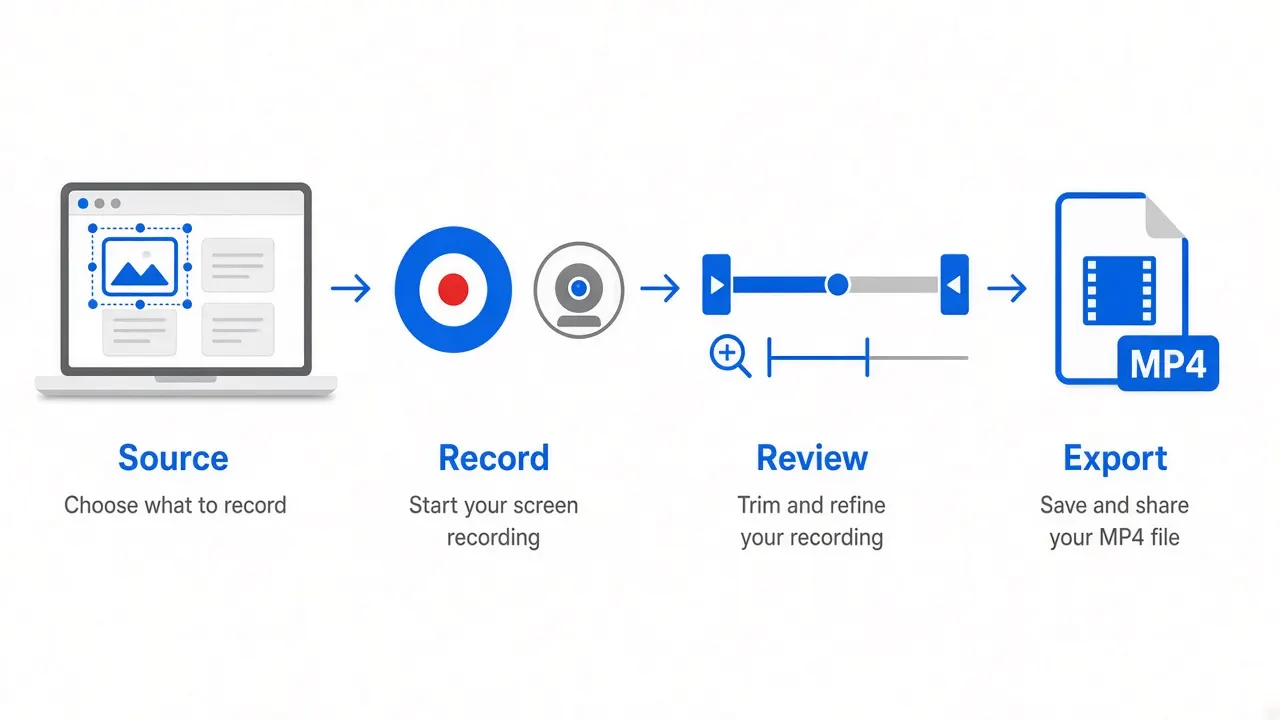
Clear the desk, then pick a source
Hide files you do not want in the frame. Decide whether the whole display, one window, or a region is enough. Official notes say you can resize a recorded window to an exact size so later takes match.
Confirm sound before you perform
System audio can come from all apps or from selected apps. Speak a sentence and play a short sound. If a meter does not move, stop and fix the source. SeemacOS audio and privacy checks.
Record, then stop in a way you can find
The official guide lists four stops: the recording widget, the menu bar icon, a right-click on the Dock icon, or the global shortcut you set. On a notched MacBook the menu bar icon can be hidden, so learn a second method on day one.
Edit the take, then choose an export that matches the audience
Trim first. Add a zoom only where a viewer would otherwise miss a click. Export as MP4 for most work. Official export notes recommend GIF only for short clips, and they warn that a 4K file takes much longer than HD. Details live infeatures.
Limits to keep in mind
Hardware
Public system requirements list macOS Ventura 13.1 or later, 8 GB of memory, Apple silicon (recommended), or listed Intel notebooks. Confirm the current table before you buy hardware around a tutorial.
Cloud is optional
The developer describes an offline-first design: recordings live on your Mac. Shareable links and some extras leave the machine only when you choose them. That is a product policy, not a Screnetik service.
What to read next
Install and permissions:setup guide. When something fails:troubleshooting. Download only from theOfficial Screen Studio download page.